Vortitron@Vortitron
Vortitron/home-assistant-mcp/tree/main/claude-plugin/vome-dash
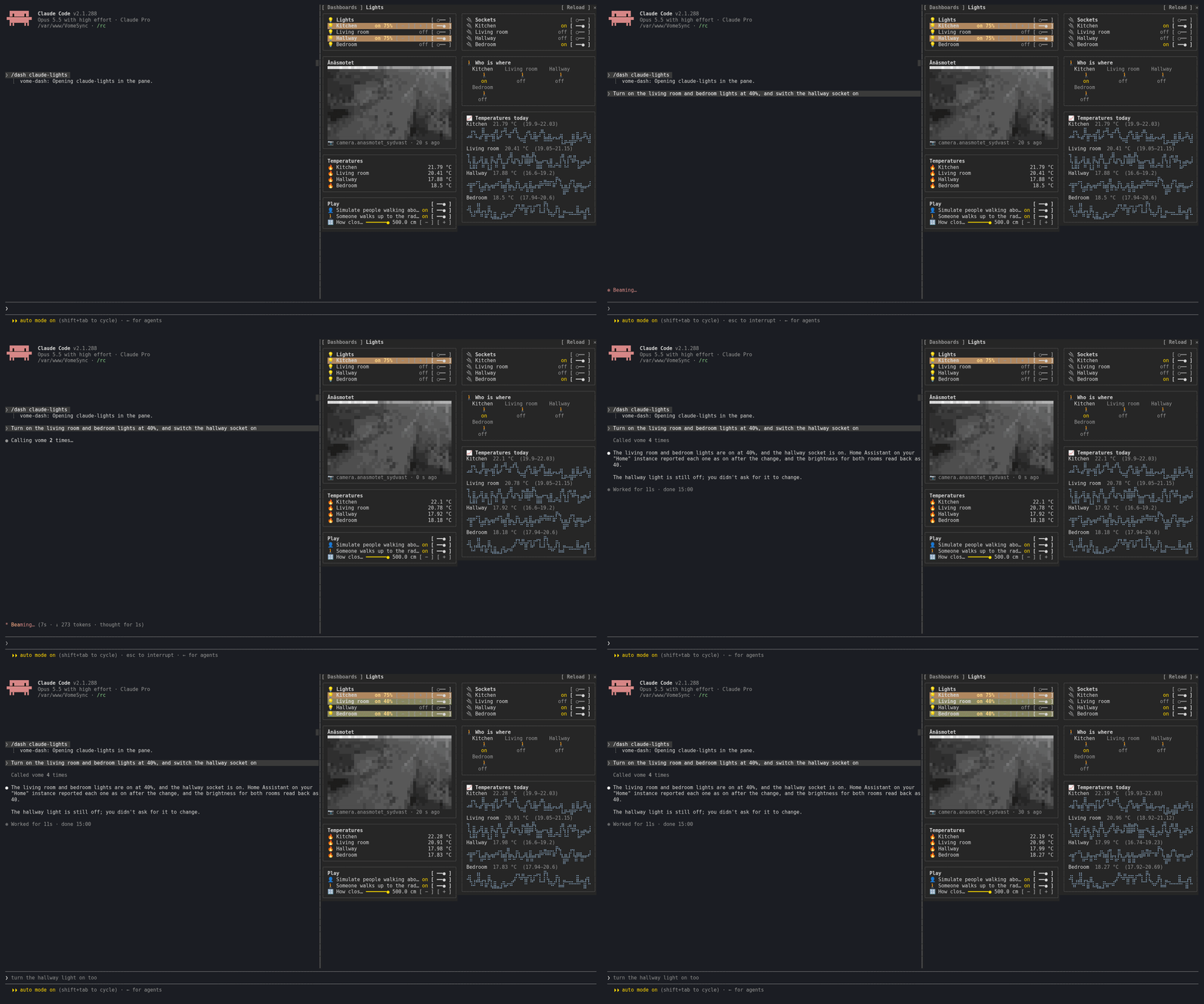
A Claude Code plugin that puts a working Home Assistant dashboard in a side pane, with live states and interactive controls.
Vortitron/home-assistant-mcp/tree/main/claude-plugin/vome-dash
vome-dash adds a side pane to Claude Code showing a real, working Home Assistant dashboard — either the one Claude is working on or any of yours. It displays live states (updates within a second, no polling), supports real controls (switches, dimmers, sliders, thermostats, scenes, scripts, card buttons), and renders cards the way Home Assistant does, including history graphs and camera frames. Cards Claude changes light up briefly. Install via /plugin install vome-connect --marketplace Vortitron/home-assistant-mcp, then /plugin install vome-dash --marketplace Vortitron/home-assistant-mcp and /reload-plugins; run /dash to open the pane. Requires the Vome Home Assistant app and a key.
Check the author's README for the marketplace and plugin name first. Commands may change as the repository evolves.
claude plugin marketplace add Vortitron/home-assistant-mcp
claude plugin install vome-dash
A side pane with a Home Assistant dashboard in it: the one Claude is working on, or any of yours. Not a picture of one: it works.
Presses are yours: Claude never presses anything in the pane.
1. Add the Vome app to Home Assistant, then get a key from it. No sign-up needed.

The button opens your own Home Assistant and adds the app's repository. Pick Vome and Install, open it, and on the Agent tab create a key. Live states need the Vome app 0.3.52 or newer.
2. Paste these into Claude Code, in a terminal (version 2.1.275 or newer):
/plugin install vome-connect --marketplace Vortitron/home-assistant-mcp
It asks for the key from step 1. Then:
/plugin install vome-dash --marketplace Vortitron/home-assistant-mcp
/reload-plugins
Or all four Vome panes at once (automations, ESPHome, health and this one):
/plugin install vome-panes --marketplace Vortitron/home-assistant-mcp.
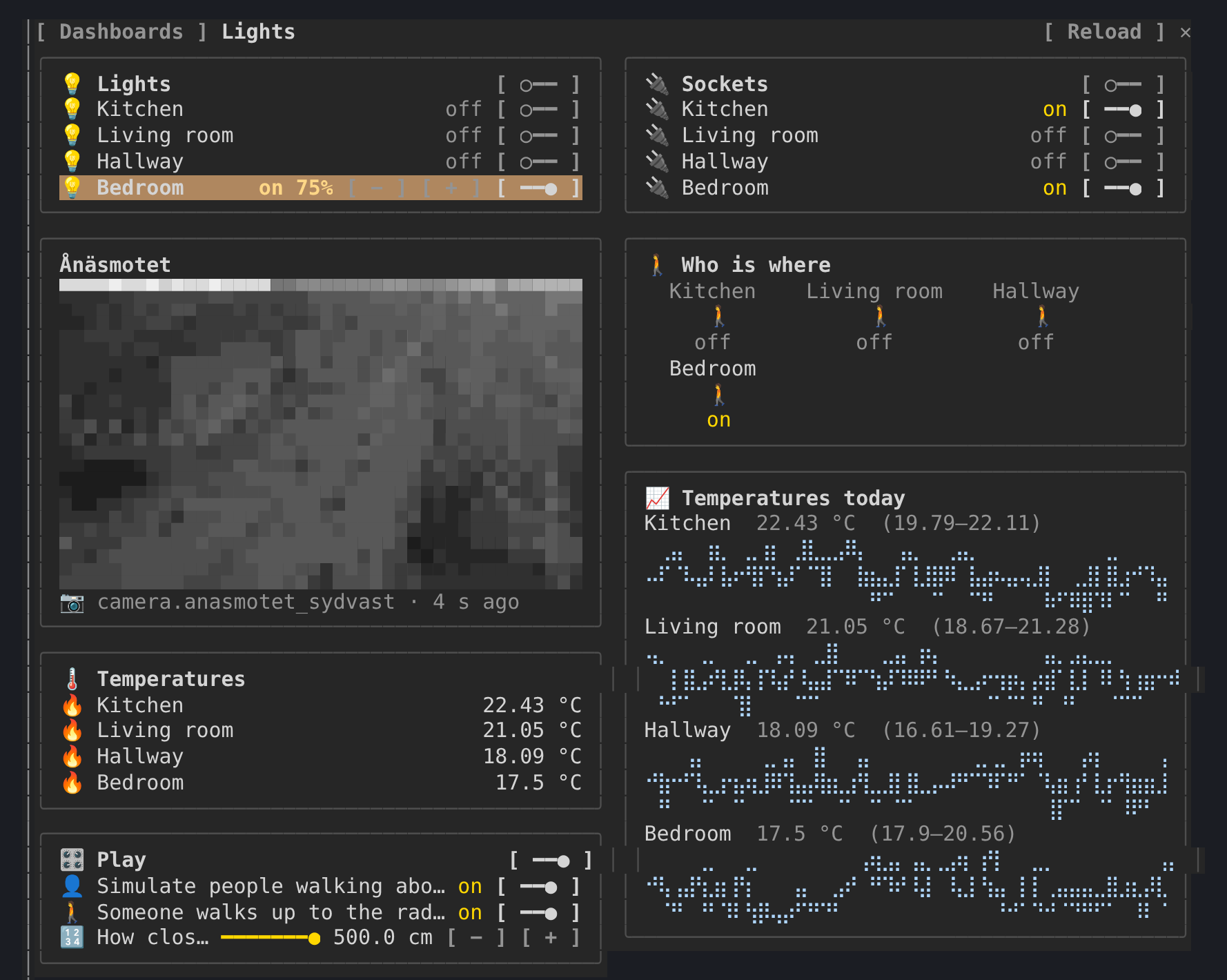
3. Run /dash, pick a dashboard, or ask Claude to build one: "Make me a
dashboard for the lights and the temperatures".
The pane reads in the background (states, the live watch, templates,
history, camera frames), all read-only. In auto mode Claude Code refuses
background calls nobody asked for unless they are allowed by name; the pane
shows the exact lines and where they go. With vome-connect:
"mcp__plugin_vome-connect_vome__ha_view_snapshot",
"mcp__plugin_vome-connect_vome__ha_watch_states",
"mcp__plugin_vome-connect_vome__ha_camera_frame",
"mcp__plugin_vome-connect_vome__ha_get_state",
"mcp__plugin_vome-connect_vome__ha_render_template",
"mcp__plugin_vome-connect_vome__ha_get_history",
"mcp__plugin_vome-connect_vome__ha_get_dashboard",
"mcp__plugin_vome-connect_vome__ha_list_dashboards"
A press calls ha_call_service. Allowing that by name would let Claude change
things without asking too, so the pane leaves that choice to you: use the
controls with auto mode off, or allow it if you are happy to.
| | |
| --- | --- |
| /dash | open the pane and pick a dashboard (/dash <url_path> opens one) |
| m | the dashboards sidebar |
| r | reload the dashboard |
The pane reads through the connection Claude Code already has. A live watch needs a key that may read the home, follows only the entities on show, reports states and never changes anything, and its access expires within minutes unless the key is still allowed. Camera pictures need the key's Cameras tick.

Documentation generation, drift detection, and API docs automation plugin that also acts as a function-hook guard refusing doc writes or worker dispatch containing secrets.

A status bar for the Claude desktop app. It draws above your prompt and shows session quality, context fill, cache countdown, and your 5-hour and weekly limits, with Clawd acting out what the session is doing.

A Claude Code plugin mod providing a /databricks-pane that presents Databricks workspace, Unity Catalog, compute, jobs, pipelines, apps and dashboards as a tree following the databricks CLI, with live highlights, profile switching, and CLI argument copy.