viticci@viticci
viticci/remctl/tree/main/plugins/claude-code
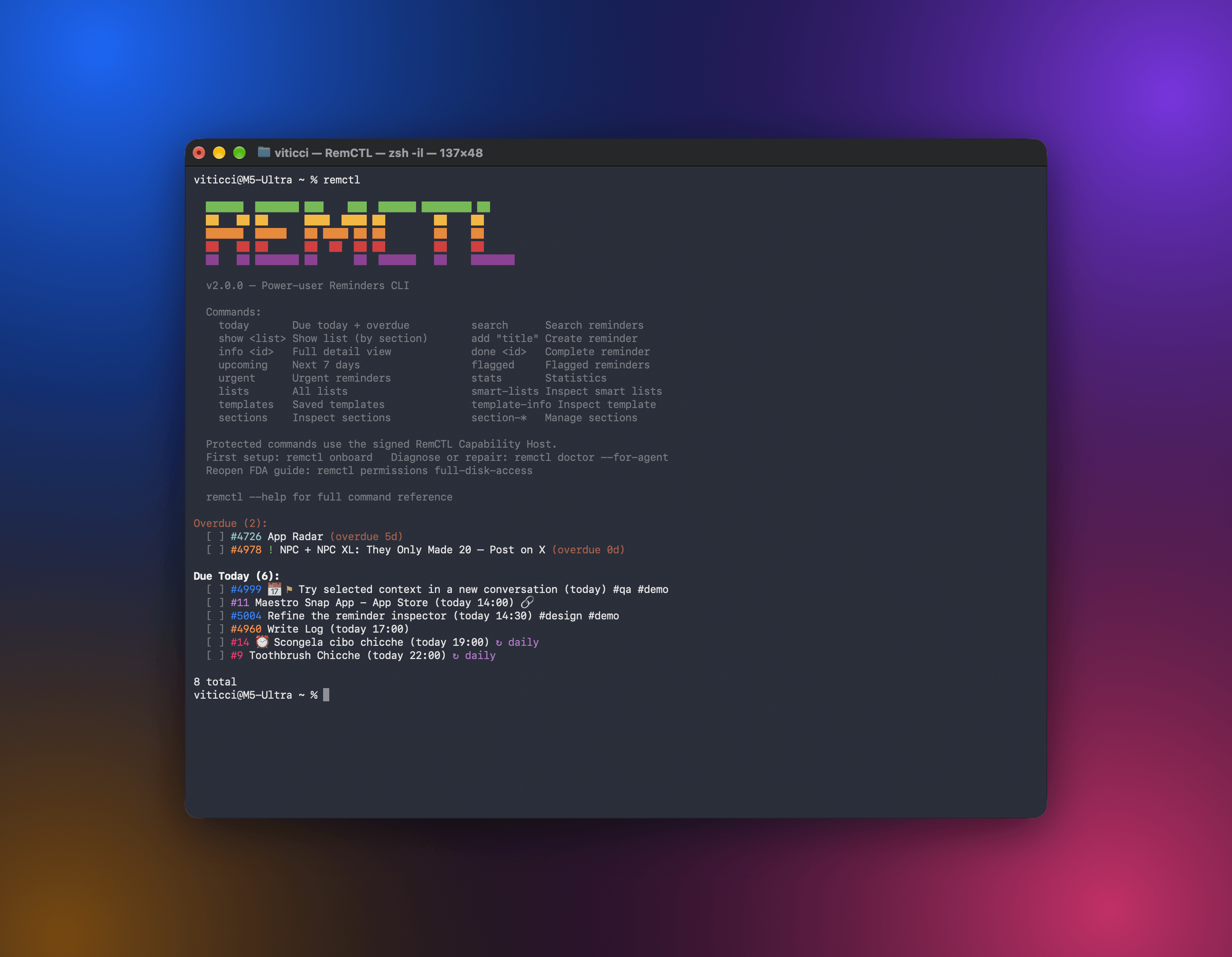
# RemCTL  RemCTL 让你可以从终端、AI 应用、Codex 内的 Reminders 工作区,以及 Claude Code 中的 Today 横条,完全控制 Apple Reminders。它涵盖提醒事项、列表、到期日期、旗标和搜索等基础功能,也支持 Apple 没有向其他应用开放的 sections、tags、subtasks、smart lists 和 templates。
viticci/remctl/tree/main/plugins/claude-code
RemCTL 让你可以从终端、AI 应用、Codex 内的 Reminders 工作区,以及 Claude Code 中的 Today 横条,完全控制 Apple Reminders。它涵盖提醒事项、列表、到期日期、旗标和搜索等基础功能,也支持 Apple 没有向其他应用开放的 sections、tags、subtasks、smart lists 和 templates。
所有操作都会经过 RemCTL Capability Host,这是一个负责持有 macOS 权限的小型签名应用。你只需授予这个应用访问权限,终端、脚本和 AI 应用就能使用它;它们不需要各自申请权限。
请先查看作者 README 确认 marketplace 和插件名称;命令可能随仓库结构改变。
claude plugin marketplace add viticci/remctl
claude plugin install remctl
RemCTL gives you full control of Apple Reminders from the terminal, from AI apps, from a Reminders workspace inside Codex, and from a Today band in Claude Code. It covers the basics (reminders, lists, due dates, flags, and search) as well as features Apple doesn't expose to other apps, such as sections, tags, subtasks, smart lists, and templates.
Everything goes through RemCTL Capability Host, a small signed app that holds the macOS permissions. You grant access to that one app, and the terminal, scripts, and AI apps use it. None of them need their own permissions.
You need macOS 14 or later with iCloud Reminders turned on. You don't need an Apple developer account, Xcode, or your own copy of Python.
Download (recommended). On a Mac with Apple silicon, download RemCTL-arm64.dmg from Releases, open it, and double-click 'Install RemCTL'. macOS asks whether to open an app downloaded from the internet; click Open. Terminal then checks that RemCTL is signed by MacStories and notarized by Apple, installs it, and walks you through permissions. The installer puts RemCTL Capability Host in ~/Applications and keeps it running in the background, so you never open it yourself.
Build it yourself (free). This is also the route for Intel Macs. Install Apple's Command Line Tools once, then build from this repo:
xcode-select --install
git clone https://github.com/viticci/remctl.git
cd remctl
./install.sh --from-source --bootstrap
This builds everything on your Mac and signs it with a certificate RemCTL creates for you. It never signs in to Apple. The certificate lives in ~/Library/Application Support/RemCTL Signing: keep it, because future updates need the same certificate to keep your permissions.
Both routes ask for your Mac password once. RemCTL installs its own Python under /Library/RemCTL, owned by root, so other apps can't tamper with it.
Setup asks for three permissions, all for 'RemCTL Capability Host': Reminders, Automation for the Reminders app, and Full Disk Access. The first two are standard macOS prompts. Full Disk Access has no prompt, so RemCTL opens a helper that shows you exactly which app to add. When it's done, check everything with:
remctl doctor
If you quit setup early, pick it up again with remctl onboard. If remctl isn't found, the installer tells you which folder to add to your PATH (usually ~/bin). Installation covers custom paths, permissions by hand, and troubleshooting.
Find your current setup below. remctl --version tells you which version you have.
| You have | Do this |
| --- | --- |
| RemCTL 2.0 from the download | Download the new release and open 'Install RemCTL' again. |
| RemCTL 2.0 you built yourself | git pull, then ./install.sh --from-source. |
| A 2.0 prerelease installed from main with your own Apple Development certificate | git pull, then ./install.sh --from-source. It reuses your certificate, so permissions carry over. |
| RemCTL 1.7.1 | Download the release and open 'Install RemCTL', or git pull and run ./install.sh --from-source --bootstrap. The installer recognizes 1.7.1 and asks before replacing it. |
| RemCTL 1.7.0 or older | From your old checkout, run ./uninstall.sh --keep-config. Then install as new. |
Updates that keep the same signature keep your permissions. RemCTL 1.x had no Capability Host, so coming from 1.x means granting permissions once to the new app. (You can remove the old grants for Terminal afterwards; RemCTL doesn't need them anymore.)
Switching between the download and your own build changes the app's signature. The installer refuses unless you add --migrate-signing, and you'll need to grant Full Disk Access again. Switching signatures explains how.
remctl today                      # due today and overdue
remctl upcoming 7                 # the next week
remctl show Work --format table   # one list, in Reminders' order
remctl search "invoice" --json    # titles, notes, and saved links
remctl add "Review PR" -l Work -d "tomorrow 10:00" -p high
remctl add "Pay rent" -d 2026-06-01 --recurrence monthly
remctl done 23880 23881           # one id or a batch of up to 50
remctl info 23880 --json          # everything RemCTL knows about one reminder
Every reminder has a stable numeric id, and every read command has --json. rctl and reminders work as aliases. The command guide covers due dates, recurrence, output formats, inline images, and every command.
RemCTL includes an MCP server (MCP, or Model Context Protocol, is the standard AI apps use to call tools). Setup offers to connect the AI apps it finds on your Mac. You can also do it yourself:
remctl mcp install                          # every supported app on this Mac
remctl mcp install --client claude-desktop  # Claude Desktop and Cowork; restart Claude afterwards
remctl mcp bundle --open                    # or install it as a one-click Claude Desktop extension
remctl mcp status
AI apps can read, create, edit, complete, and delete reminders and lists, search with paging, and restore reminders from Recently Deleted. Apps that support MCP Apps also get an interactive reminders widget. To use RemCTL from Claude Code, Codex, or Claude Desktop on another computer, remctl mcp install --client tailscale serves the same tools over your private Tailscale network.
The MCP guide has the full tool list and troubleshooting. There's also a guide for Hermes Agent.
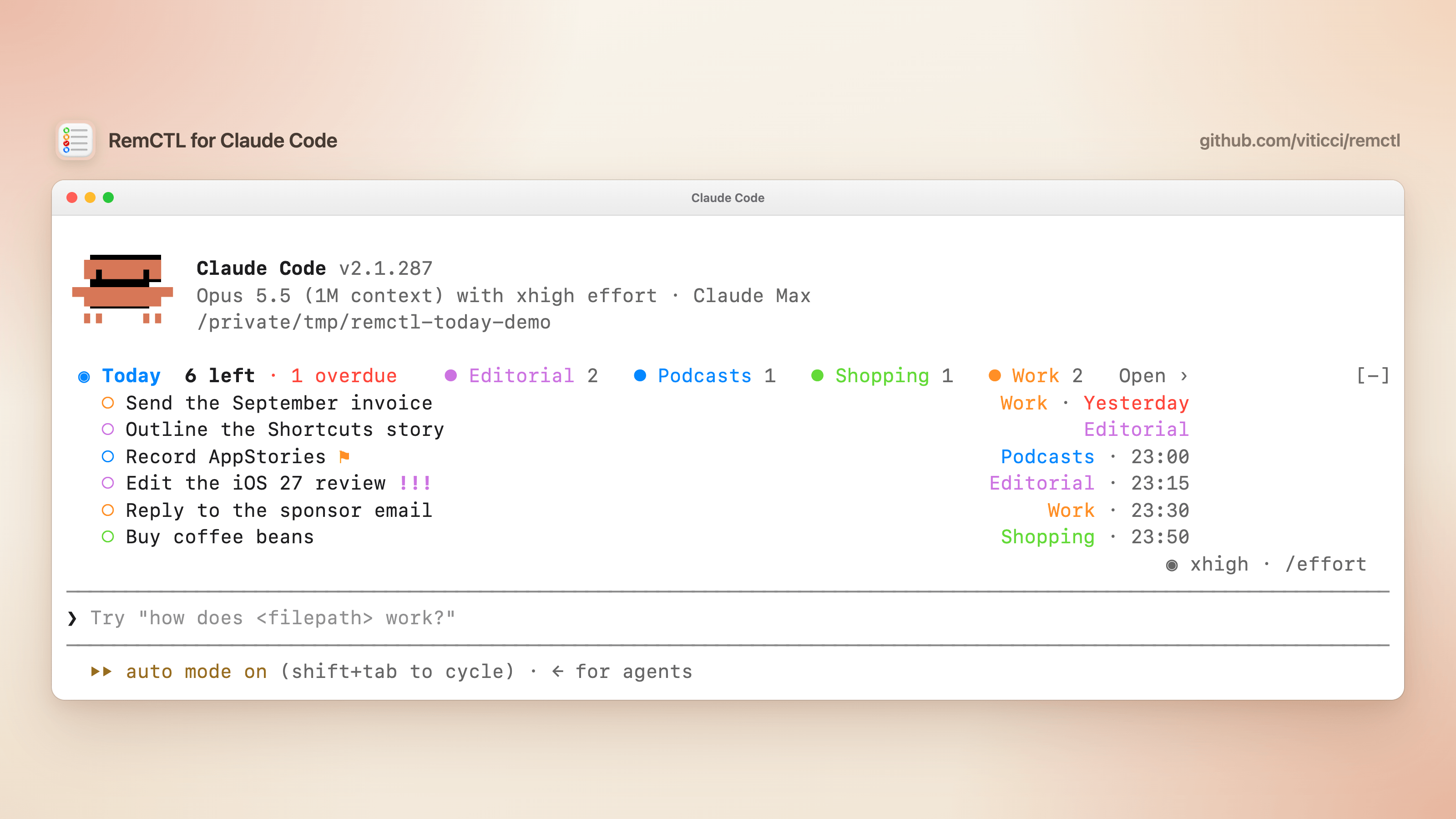
The RemCTL plugin for Claude Code gives Claude RemCTL's tools and adds Today, a mod that keeps today's reminders above the prompt. A mod is the part of a plugin that draws in Claude Code's own interface. Today shows how many tasks are left, which ones are overdue, and every list in its Reminders color.
Install RemCTL first, then add the plugin from this repository's marketplace. In Claude Code:
/plugin marketplace add viticci/remctl
/plugin install remctl@remctl
/reload-plugins
Or from your shell, before you start Claude Code:
claude plugin marketplace add viticci/remctl
claude plugin install remctl@remctl
What you get:
~/bin/remctl mcp, the same server remctl mcp install connects, so Claude can read, create, edit, and complete your reminders.!, !!, or !!! shows its priority. When the chips don't fit beside the summary, they get a row of their own. Open › opens /reminders. When nothing is left, the band says so; when RemCTL can't read Reminders, it shows the error instead. The band hides while the /reminders pane is open, and Claude Code's [-] button collapses it./reminders. A pane with today's date and counts, and today's tasks grouped by list, in your sidebar's order. It docks beside the conversation in a window at least 110 columns wide, and opens above the prompt in a narrower one. Press ✓ to complete a task in Reminders: the row fills in, then leaves the list. Undo brings back the last task you completed, and only that one. Repeating tasks have no Undo because completing them advances the series. Refresh reads Reminders again, and "Updated" shows when it last did. The command also adds one line to the conversation, such as "Today: 6 left, 1 overdue.", which Claude can read.status, the summary moves under the prompt, with your next task: "Today: 6 left · 1 overdue · next: Record AppStories 23:00"./clear, and every five minutes otherwise.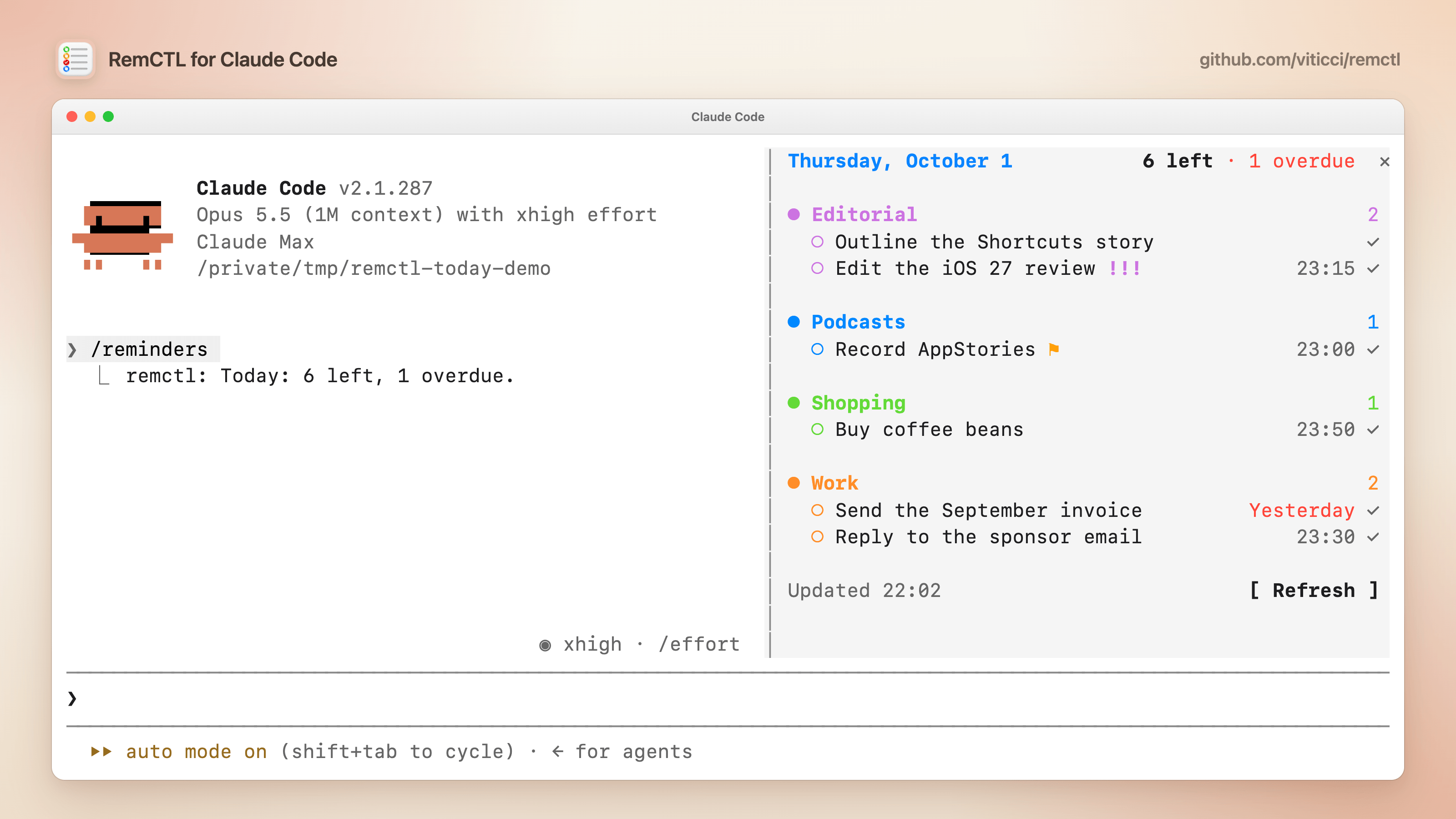
To use the pane from the keyboard, press ctrl+x, then Tab, to move from the prompt to the pane. Tab and Shift-Tab move between its buttons (each task's ✓, Undo, Refresh, and the ✕ that closes the pane), Enter presses the one that's selected, and Esc returns to the prompt. You can also click them. After you complete a task, the selection moves to the next task's ✓, so pressing Enter again completes that one too.
To change how Today looks, open /config, where each setting's title starts with "Today:", or run /plugin configure remctl@remctl. From your shell, pass the settings you want to change as JSON, by key and with every value in quotes, then start a new session:
echo '{"display": "status", "refreshMinutes": "2"}' | claude plugin configure remctl@remctl --values-stdin
| Setting | Key | Default | What it does |
| --- | --- | --- | --- |
| Show tasks as | display | band | band lists your next tasks under the summary, compact shows the summary line only, status moves it to the status line, and pane only shows nothing until you run /reminders. |
| Tasks in the band | rows | 3 | How many tasks the band lists, from 0 to 8. |
| Include overdue tasks | includeOverdue | on | Counts and lists reminders that were due before today. |
| Only these lists | lists | empty | Comma-separated list names, such as Work, Editorial. Empty means every list. |
| Complete from the pane | checkboxes | on | Shows the ✓ buttons in /reminders. |
| Refresh every (minutes) | refreshMinutes | 5 | How often Today reads Reminders again, from 1 to 60. |
| Open the pane at start | openOnStart | off | Docks /reminders beside the conversation when a session starts in a wide window. |
A few things to know:
claude --version to check. Older versions still get RemCTL's tools, without the band or /reminders./reminders once the app bundles Claude Code 2.1.287 or later. Until then, it has RemCTL's tools only.remctl mcp install and onboarding don't add another connection to Claude Code. If you connected Claude Code before with remctl mcp install --client claude-code, remove that connection so Claude doesn't see every RemCTL tool twice: remctl mcp remove --client claude-code, or run remctl mcp install again. remctl doctor points it out. Skills or prompts that name a tool such as mcp__remctl__today should then use mcp__plugin_remctl_remctl__today./plugin → Marketplaces. To update by hand, run claude plugin marketplace update remctl, then claude plugin update remctl@remctl.The RemCTL plugin for Codex on the Mac adds a full Reminders workspace, with a sidebar that works like the Reminders app: list, column, and calendar layouts, an inspector for every reminder field, drag and drop, a command palette, quick add, and your real list icons and colors. It follows your Mac's light and dark appearance, remembers the layout you pick for each list, and keeps your reminders in Apple Reminders. You can attach specific reminders to a conversation.
Install RemCTL first, then add the plugin from the installed app:
codex plugin marketplace add "$HOME/Applications/RemCTL Capability Host.app/Contents/Resources"
codex plugin add remctl@remctl-local
Open 'Reminders' in the Codex sidebar, or ask Codex to open your Reminders workspace. The Codex plugin guide covers updates, settings, keyboard shortcuts, and removal.
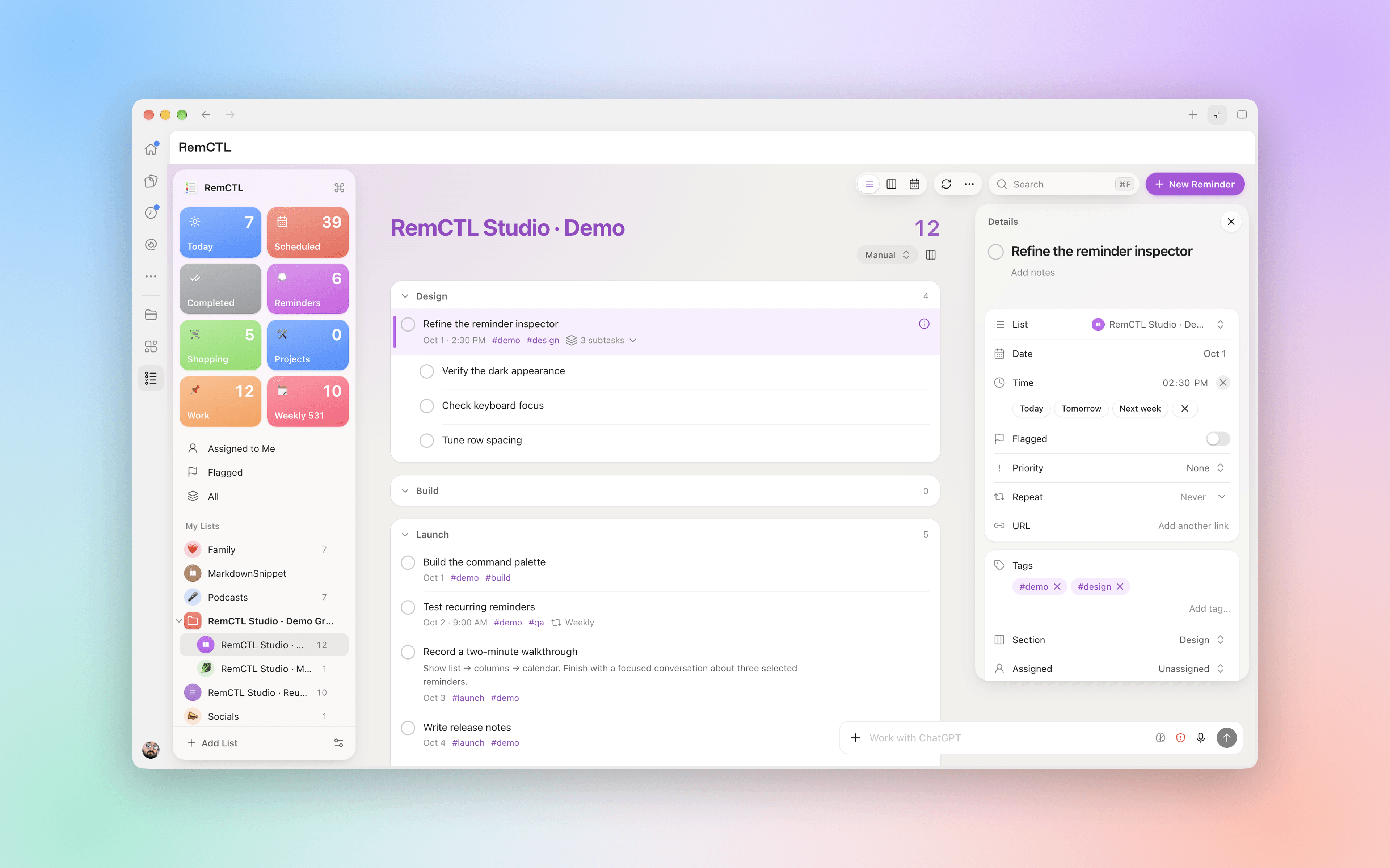
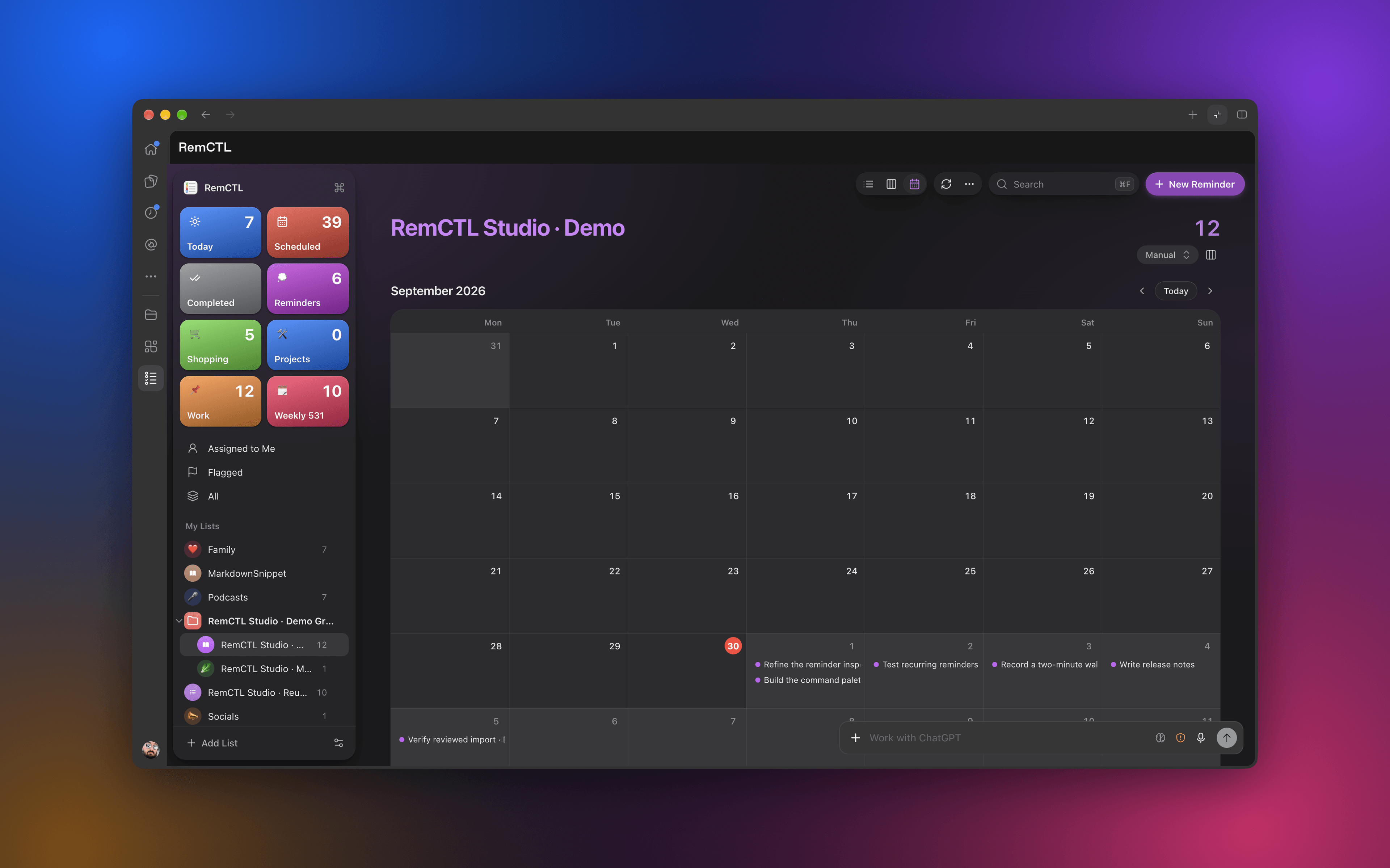
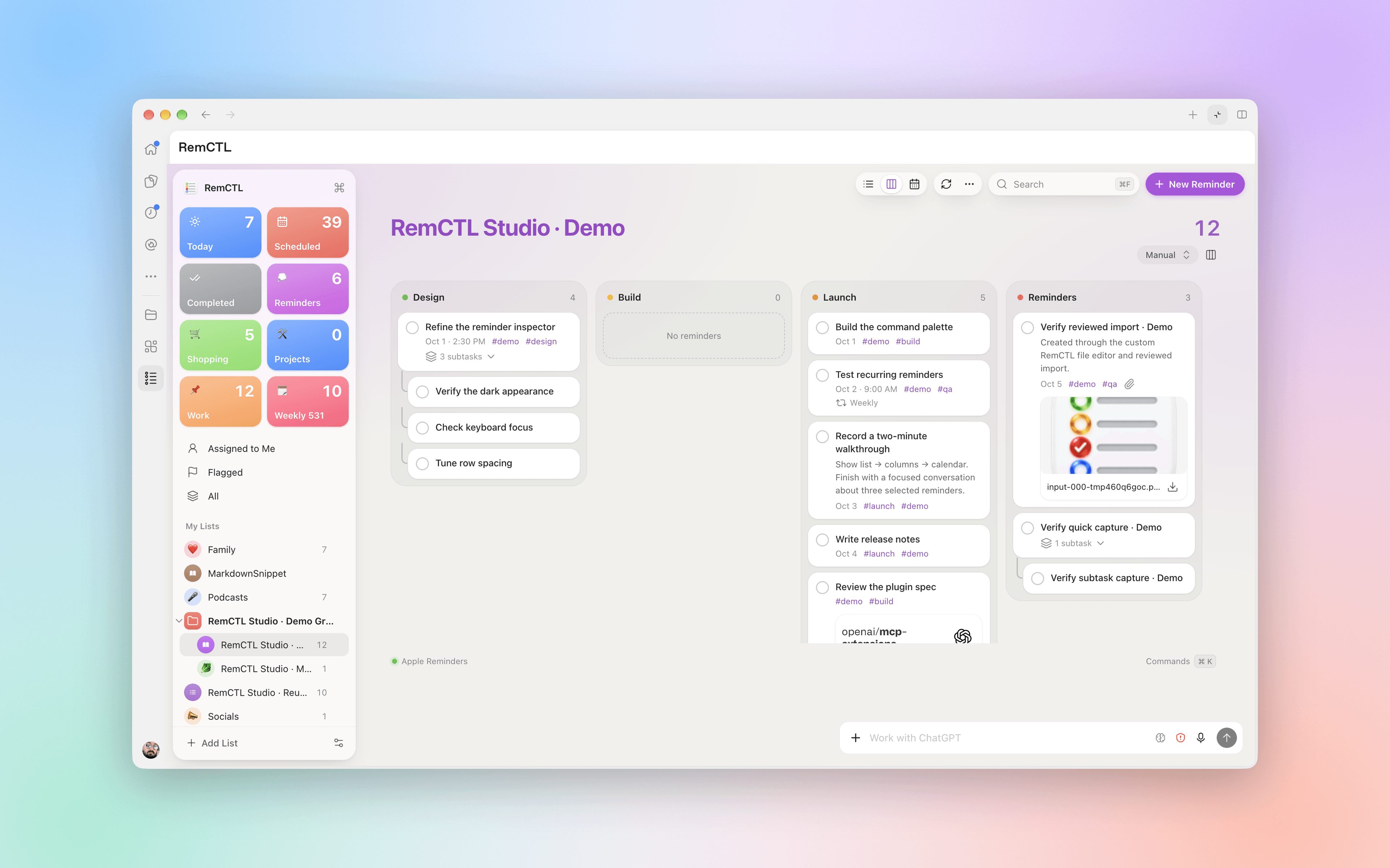
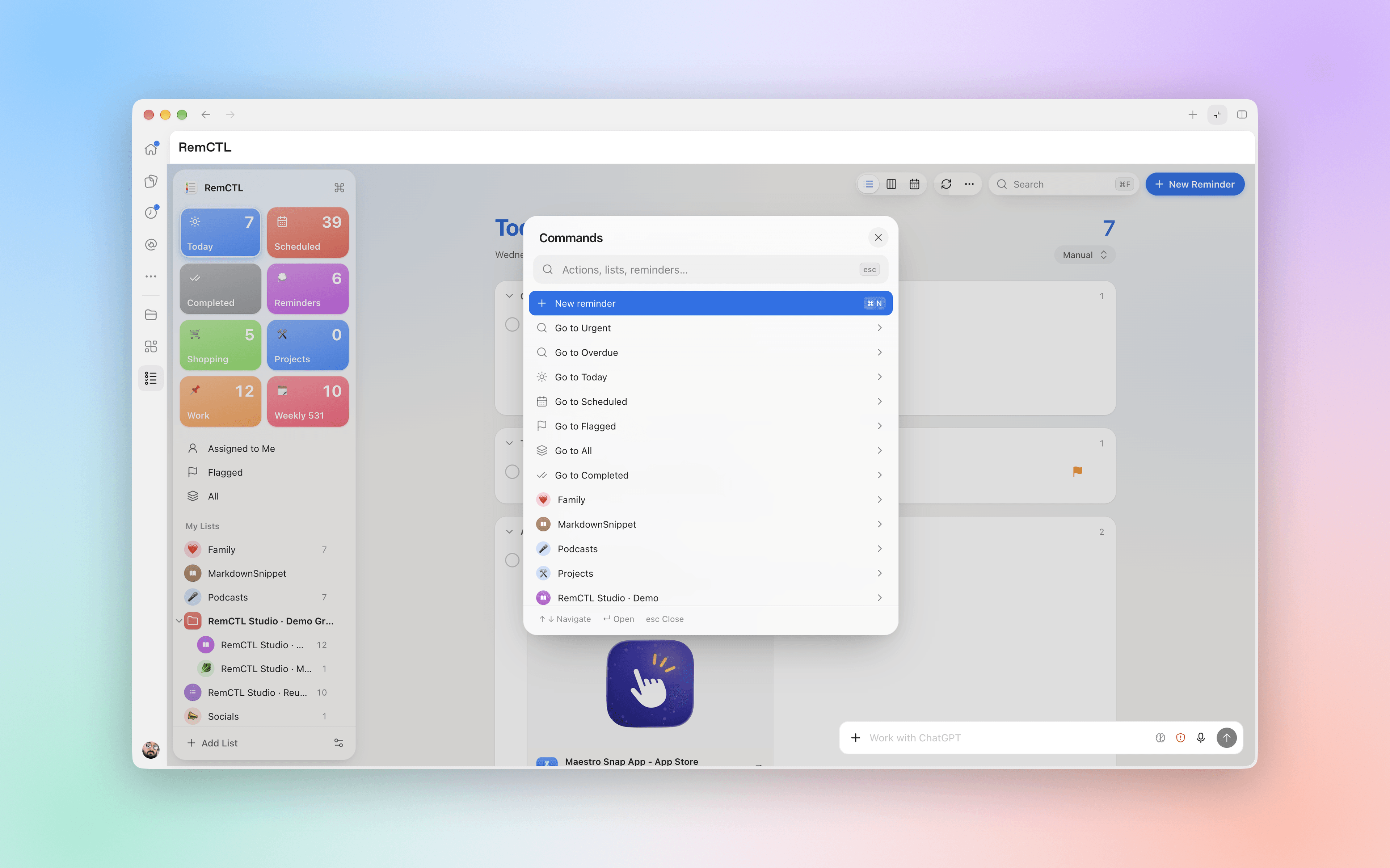
Some Reminders features have no public API: sections, synced tags, rich links, image attachments, subtasks, shared-list assignment, urgent reminders, Early Reminders, manual ordering, list icons, Groceries lists, list groups, custom smart lists, and templates. RemCTL writes them only when you pass --private:
remctl add "Research" -l Projects --private --url https://example.com -t remctl --section Research
remctl smart-list-create "Priority or Today" --private --match any --priority high,medium --date today
These writes use Apple's private ReminderKit framework, never the database directly. Apple can change these APIs in any macOS release. Private metadata lists what works and how to verify it.
Read SKILL.md. In short: use the RemCTL MCP tools when they're connected, use deterministic dates (YYYY-MM-DD or YYYY-MM-DD HH:MM), and verify writes with info <id> --json. remctl doctor --for-agent --json reports readiness; access.effective is the field that matters.
Disconnect AI apps and remove the Claude Code and Codex plugins first, then run the uninstaller that came with the app (or ./uninstall.sh from a checkout):
remctl mcp remove
claude plugin uninstall remctl@remctl && claude plugin marketplace remove remctl
codex plugin remove remctl@remctl-local && codex plugin marketplace remove remctl-local
~/Applications/"RemCTL Capability Host.app"/Contents/Resources/Distribution/uninstall.sh
It stops the Capability Host and removes the app, the CLI, its background service, and your RemCTL settings (add --keep-config to keep them). It leaves the shared Python under /Library/RemCTL and your signing certificate in place, and it doesn't revoke macOS permissions. --dry-run shows what it would remove.
| Path | Purpose |
| --- | --- |
| remctl | The CLI |
| remctl_mcp.py, remctl_mcp_widget.html | MCP server and its reminders widget |
| remctl_plugin.py, remctl_workspace.py, remctl_workspace.html | Codex plugin tools and the built workspace |
| remctl_events.py | MCP Events (not enabled in the plugin yet) |
| remctl_broker.py, remctl_capability_policy.py, remctl_capabilities.py | Socket protocol and host command policy |
| remctl_runtime.py, remctl_serialization.py, remctl_images.py, remctl_smart_lists.py | Shared helpers, JSON, images, and smart-list filters |
| remctl-capability-host.swift | The signed host app |
| remctl-bridge.swift, remctl-private.m, remctl-permissions.swift | EventKit, private ReminderKit, and Full Disk Access helpers |
| plugins/claude-code/, .claude-plugin/ | Claude Code plugin (MCP server and the Today mod) and its marketplace |
| plugins/remctl/, .agents/plugins/ | Codex plugin manifest, skills, and marketplace |
| ui/ | Workspace source (only needed to change the interface) |
| scripts/ | Release builds, notarization, signing, and live test matrices |
| install.sh, uninstall.sh | Installer and uninstaller |
MIT. See LICENSE.

文档生成、漂移检测和 API 文档自动化插件,同时作为 function-hook 防护,拒绝包含机密的文档写入或 worker 调度。

Claude 桌面应用的状态栏。它显示在提示符上方,展示会话质量、上下文填充量、缓存倒计时,以及 5 小时和每周限额,并让 Clawd 演示会话正在进行的操作。

一个 Claude Code 插件 mod,提供 /databricks-pane:按照 databricks CLI,以树状结构展示 Databricks 工作区、Unity Catalog、计算资源、作业、管道、应用和仪表板,并支持实时高亮、配置文件切换和复制 CLI 参数。