Vortitron@Vortitron
Vortitron/home-assistant-mcp/tree/main/claude-plugin/vome-automation
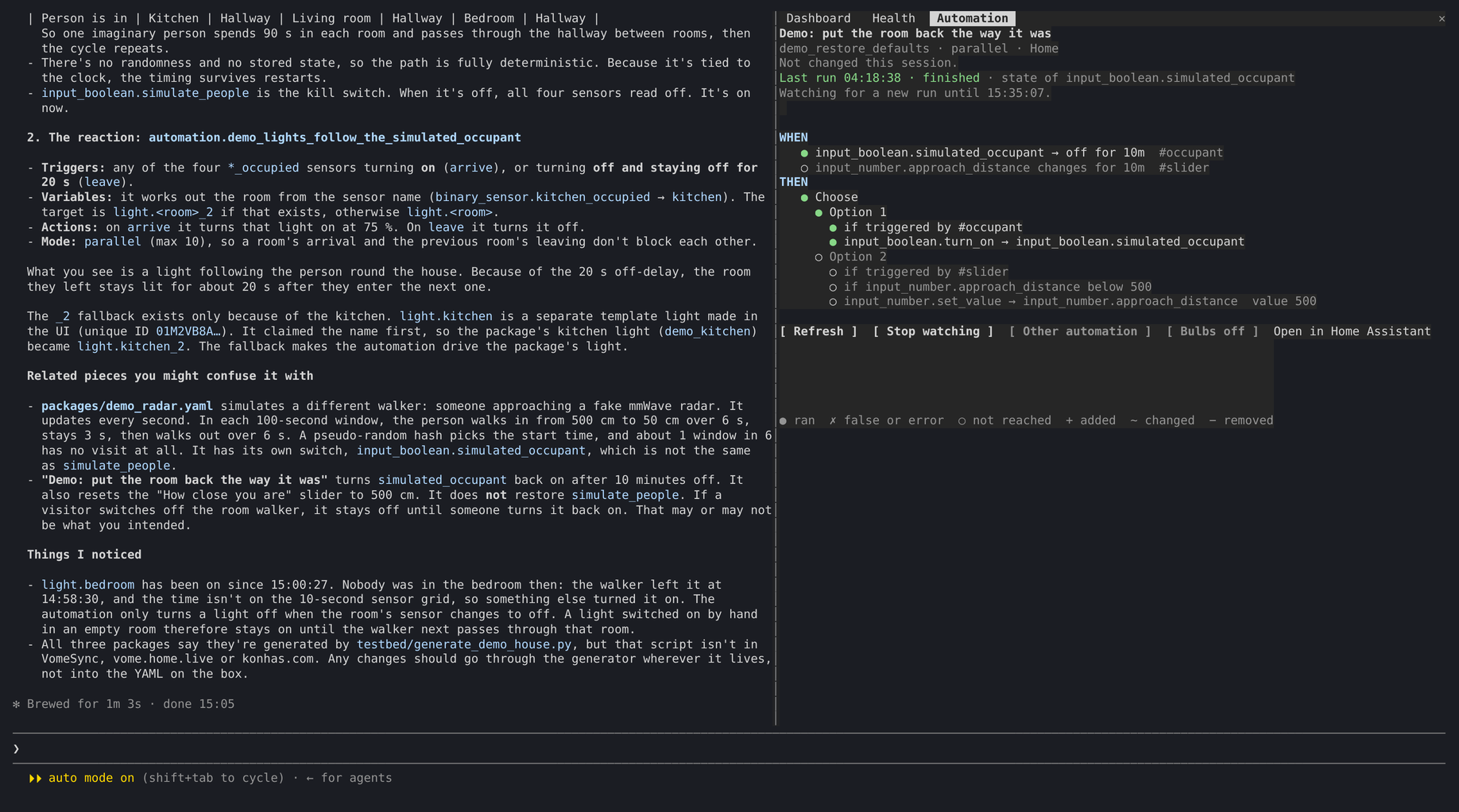
Claude Code 的終端側邊面板,顯示 Claude 正在處理的 Home Assistant 自動化:觸發條件、條件和動作依 HA 編輯器的巢狀方式呈現,包含儲存改了什麼、最近一次執行走過哪些步驟,以及會把事件演出來的汽車音響點矩陣顯示器。唯讀,由 @vortitron/home-assistant-mcp 伺服器驅動。
Vortitron/home-assistant-mcp/tree/main/claude-plugin/vome-automation
Claude Code 中的側邊面板,顯示 Claude 正在處理的 Home Assistant 自動化,並在 Claude 讀取、編輯和執行它時保持更新。
它會依 Home Assistant 編輯器的巢狀方式呈現自動化(觸發條件、條件、動作,以及 choose/if/repeat/parallel 區塊),儲存後標記新增、變更和刪除的行,並在每個步驟旁標明最近一次執行是否到達該步驟(已執行、判定為 false/發生錯誤、未到達),還會繪製一個把事件演出來的汽車音響點矩陣顯示器。
透過 /plugin install vome-automation --marketplace Vortitron/home-assistant-mcp 安裝,接著執行 /reload-plugins。需要將 @vortitron/home-assistant-mcp 連接到 Claude Code,需要終端版 Claude Code 2.1.287+,並啟用 function-hook 外掛。執行時按鍵:/automation 開啟/列出/顯示,r 重新整理,o 選擇其他項目,w 切換監看,b 切換顯示器。在自動模式下,請在伺服器名稱下允許唯讀 MCP 工具(ha_get_automation、ha_get_trace、ha_list_traces、ha_list_automations,以及 Vome 主機使用的 vomehome_get_instance)。
請先查看作者 README,確認 marketplace 與外掛名稱;指令可能隨儲存庫結構而變動。
claude plugin marketplace add Vortitron/home-assistant-mcp
claude plugin install vome-automation
A side pane in Claude Code that shows the Home Assistant automation Claude is working on, kept up to date as Claude reads it, edits it and runs it.
1. Add the Vome app to Home Assistant, then get a key from it. No sign-up needed.

The button opens your own Home Assistant and adds the app's repository. Pick Vome and Install, open it, and on the Agent tab create a key. A home hosted on Vome gets its key at vome.io instead, under Account → API tokens.
2. Paste these into Claude Code, in a terminal (version 2.1.275 or newer):
/plugin install vome-connect --marketplace Vortitron/home-assistant-mcp
It asks for the key from step 1. Then:
/plugin install vome-automation --marketplace Vortitron/home-assistant-mcp
/reload-plugins
Or all four Vome panes at once (automations, ESPHome, health and a working dashboard):
/plugin install vome-panes --marketplace Vortitron/home-assistant-mcp.
3. Ask Claude about an automation, for example "Why didn't my hallway lights turn off?". The pane opens beside the conversation.
In auto mode, the pane asks you to allow its read-only tools the first time; it shows the exact lines and where they go.
choose, if/then/else, repeat and parallel
blocks indented the way the editor shows them.The pane only reads. It never changes anything in your home itself; every change is Claude's own tool call, which you see and approve as usual.
The pane follows Claude's work through the Home Assistant MCP server,
@vortitron/home-assistant-mcp. Connect that to Claude Code
before (or after) installing the pane; until it is connected, the pane says so
and shows these two ways in:
Through Vome (one key, nothing to run): get a key from the Vome app's
Agent tab in Home Assistant (no sign-up needed;
add the app to your Home Assistant)
or, for a home hosted on
Vome, from vome.io under Account → API tokens. Then install
vome-connect, which asks for the key:
/plugin install vome-connect --marketplace Vortitron/home-assistant-mcp
Without Vome: run the MCP on your machine with npx, pointed at your
Home Assistant's address and a long-lived access token. See
Install in the MCP's README.
Check it's connected with /mcp; the pane picks it up by itself.
@vortitron/home-assistant-mcp connected to Claude
Code. Any setup works: a home hosted on Vome, one linked
through the Vome relay, or your own Home Assistant via HA_URL and a token.
The server can have any name; the pane follows our tools whatever it is
called. Other Home Assistant MCP servers are not supported; their tools and
replies differ.claude in a terminal there.In Claude Code (2.1.275 or newer), one command adds the marketplace and installs the pane:
/plugin install vome-automation --marketplace Vortitron/home-assistant-mcp
On an older Claude Code, use two:
/plugin marketplace add Vortitron/home-assistant-mcp
/plugin install vome-automation@vome
Then run /reload-plugins, or restart Claude Code.
Claude Code doesn't update plugins from a marketplace like this one unless you
ask it to. Turn it on once: run /plugin, open Marketplaces, select
vome and choose Enable auto-update. Or update by hand with
claude plugin update vome-automation@vome.
The pane reads the latest run of the automation in the background, and checks every 15 seconds for new ones while it watches. In auto mode, Claude Code's safety check refuses background calls like these, because no request of yours is behind them, and run marks and "it ran" notices would be missing.
Allow the read-only tools it uses, under your server's name. Find
the name with claude mcp list: the Vome portal's snippet calls it vome,
and vome-connect calls it
plugin_vome-connect_vome (so mcp__plugin_vome-connect_vome__ha_get_trace).
Add them to ~/.claude/settings.json (every project) or the project's
.claude/settings.json:
{
  "permissions": {
    "allow": [
      "mcp__vome__ha_get_automation",
      "mcp__vome__ha_get_trace",
      "mcp__vome__ha_list_traces",
      "mcp__vome__ha_list_automations",
      "mcp__vome__vomehome_get_instance"
    ]
  }
}
If you skip this, the pane turns into a "needs permission" screen the first
time a read is refused. It names the read, shows these exact lines for your
server with a button to copy them, links your settings.json, and quotes
what Claude Code said. d dismisses it and h brings it back.
Replace vome with your server's name, for example
mcp__home-assistant__ha_get_trace for a server named home-assistant. The
last line is only for homes on Vome: it lets the pane show an "Open in Home
Assistant" link. You can also add each one with /permissions → Allow.
These tools only read: an automation's config and its recorded runs. Allowing them also lets Claude call them without asking, which it would mostly do anyway.
The pane opens on its own the first time Claude reads or saves an automation
through the MCP. On a narrow terminal (under 144 columns) it waits; open it
with /automation.
| | |
| --- | --- |
| /automation | open the pane; with nothing shown yet, list the home's automations to pick from |
| /automation list | list the home's automations to pick from |
| /automation <id> | show an automation by its id or automation. entity id |
| r | refresh the automation and its latest run |
| o | pick another automation from the list |
| w | stop watching for runs, or start again (30 minutes) |
| b | the dot-matrix display off or on (remembered) |
The keys work while the pane has focus: click it, or press ctrl+x then tab.
/automation says where it is being drawn; "no surface is
attached to draw it" means an editor extension. If /automation is an
unknown command, the plugin didn't load: plugins of function hooks aren't
enabled for you yet.vomehome_use_instance) while the pane showed an automation from the
first. The pane stops rather than mixing two homes up; ask Claude to read
the automation again.The pane talks only to your own MCP server, with the same connection Claude Code already has, and only to read. It keeps what it shows in the Claude Code session; the only thing stored between sessions is whether you turned the display off. Nothing is sent anywhere else.
The hooks module is hooks/register.tsx. hooks/flow.ts turns an automation
and a run into the pane's rows, and hooks/bulbs.ts draws the display; both
are pure. Load a checkout with claude --plugin-dir claude-plugin/vome-automation
(saving a file reloads it), and run the tests with
claude plugin test claude-plugin/vome-automation. claude plugin validate
checks the plugin and the marketplace at the repository root.

文件產生、漂移偵測與 API 文件自動化外掛程式,同時作為 function-hook 防護,拒絕含有機密的文件寫入或 worker 派送。

Claude 桌面應用程式的狀態列。它顯示在提示列上方,呈現工作階段品質、內容脈絡填充量、快取倒數,以及 5 小時與每週限額,並讓 Clawd 演出工作階段正在做什麼。

一個 Claude Code 外掛 mod,提供 /databricks-pane:依照 databricks CLI,以樹狀結構呈現 Databricks 工作區、Unity Catalog、計算資源、工作、管線、應用程式和儀表板,並支援即時醒目顯示、設定檔切換和複製 CLI 參數。