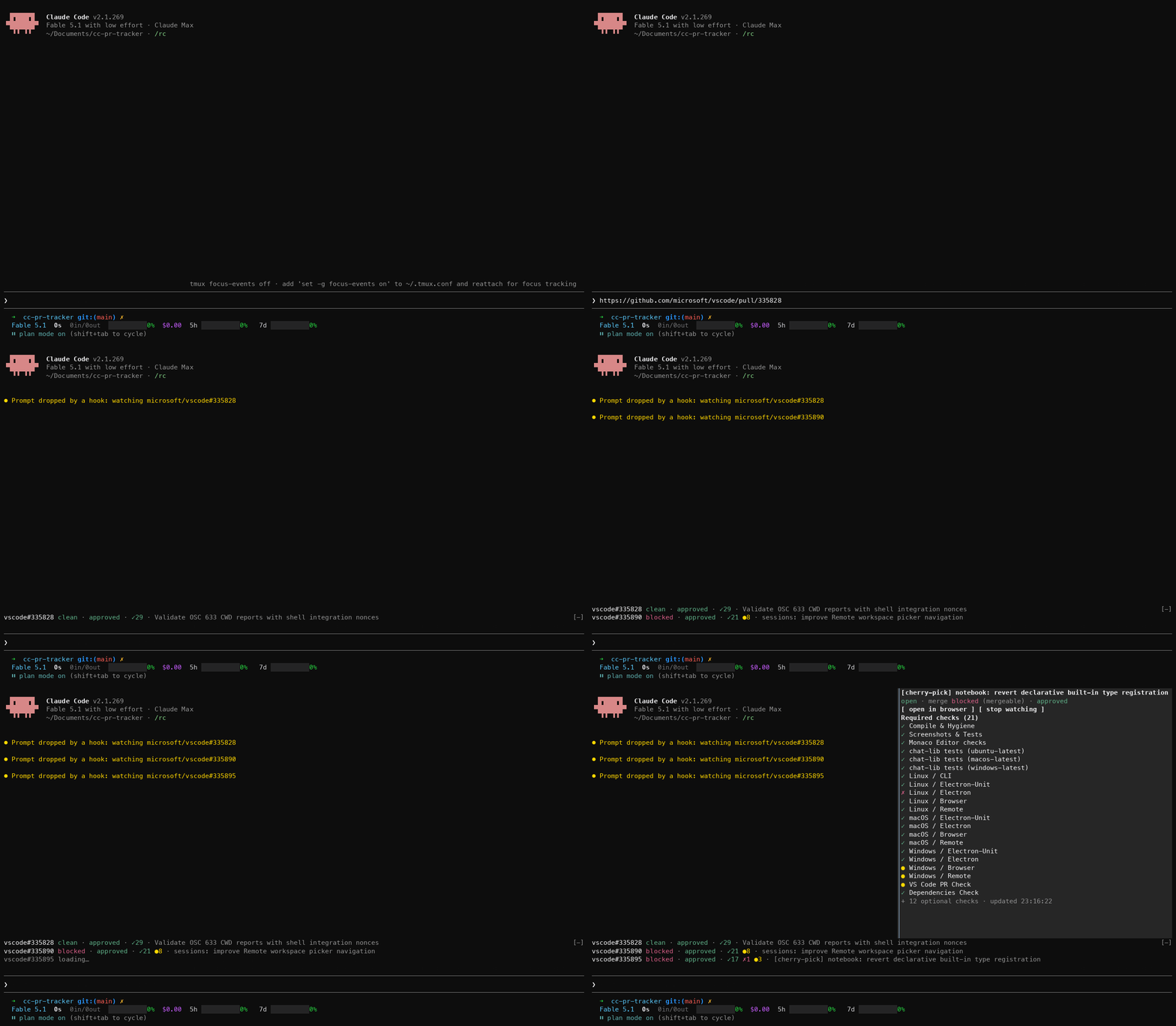
terminal-browser claude code plugin
This plugin is experimental and does have some known limitations
https://github.com/user-attachments/assets/a79e7667-6fcb-49a4-9967-44d0f942102c
Installation
Install terminal-browser
curl -fsSL https://terminal-browser.sh/install | bash # or brew install terminal-browser
Ensure you are on the latest version of claude code
claude update
Enable claude code UI plugins by adding this to ~/.claude/settings.json:
{
  "env": { "CLAUDE_CODE_ENABLE_FUNCTION_HOOKS": "1" }
}
Install the terminal-browser plugin
# set the marketplace
claude plugin marketplace add zenbu-labs/terminal-browser
# install the plugin
claude plugin install terminal-browser@terminal-browser
Now you can run "/browser" inside claude code to open the browser
Updating
Update the claude code plugin
claude plugin update terminal-browser@terminal-browser
Update terminal-browser
terminal-browser upgrade
Configuration
You can configure the terminal-browser plugin to include a tool that claude can use to open the browser. This is by default off, since claude can already use the terminal-browser CLI to open the browser inside the terminal through a split pane. You can enable the tool by adding the following to your ~/.claude/settings.json:
{
  "pluginConfigs": {
    "terminal-browser@terminal-browser": {
      "options": {
        "agentTool": true
      }
    }
  }
}
terminal-browser plugin API
The terminal-browser plugin comes with an API you can use within another claude code plugin to programatically open the browser and load a URL. Some examples of useful plugins you can build with this are:
/tldraw slash command that opens tldraw in the claude code split pane/open-pr slash command that opens the PR associated with the branch you are working on
export type BrowserOpenInput = { url?: string }

export type BrowserOpenResult =
  | { ok: true; url: string }
  | { ok: false; error: string }

export type Browser = {
  open: (input: BrowserOpenInput) => Promise<BrowserOpenResult>
  close: (input?: Record<string, never>) => Promise<boolean>
}

// usage: in your plugin's hooks module
on('command.run', { command: 'tldraw' }, async ($) => {
  const result = await $.browser.open({ url: 'https://www.tldraw.com/' })
  return { text: result.ok ? 'Opened tldraw' : result.error }
})
How does it work?
terminal-browser uses the kitty graphics protocol to display pixels generated by a real browser inside the terminal. To display the browser inside claude code, we use claude codes new function hooks API.
terminal-browser's internals have been extracted to a javascript library - https://github.com/zenbu-labs/terminal-browser/tree/main/pixel - if you would like to build your own graphical application inside claude code/the terminal
Supported terminals
The terminal-browser claude code plugin will only work in terminals that support the kitty graphics protocol, and implement kitty unicode placeholders. The most popular terminals that support this feature are:
If your terminal does not support the required features, trying to open the browser inside claude code may garble the TUI
In addition any terminals that are built on libghostty will support this feature, some examples are:
You can find more libghostty based terminals here: awesome-libghostty
Even if your terminal supports the required graphics feature, if you are running a multiplexer, the plugin may not work. This is because multiplexers rewrite the output of terminal programs and breaks terminal graphics commands. tmux support will be arriving soon (terminal-browser currently works in tmux, just not through the claude code plugin yet), and within herdr performance is very bad when running through the claude code plugin, but will likely improve soon. Other multiplexers I have not tested, so if it does not work please file an issue and I will see if we can support this.
Caveats:
- depends on your terminal supporting the kitty graphics protocol
- the mouse position will sometimes be slightly off, since claude code does not enable pixel coordinate mouse reporting
- the plugin needs to make fetch requests to a local http server to communicate with the terminal-browser CLI, which may cause a prompt to show in your OS that your terminal wants to access the local network
- claude code sets a very high min width for the chat area, so its sometimes not possible to resize the browser to the size you want
- the plugin depends on the experimental function hooks claude code API, which is unstable, so the plugin may break between releases