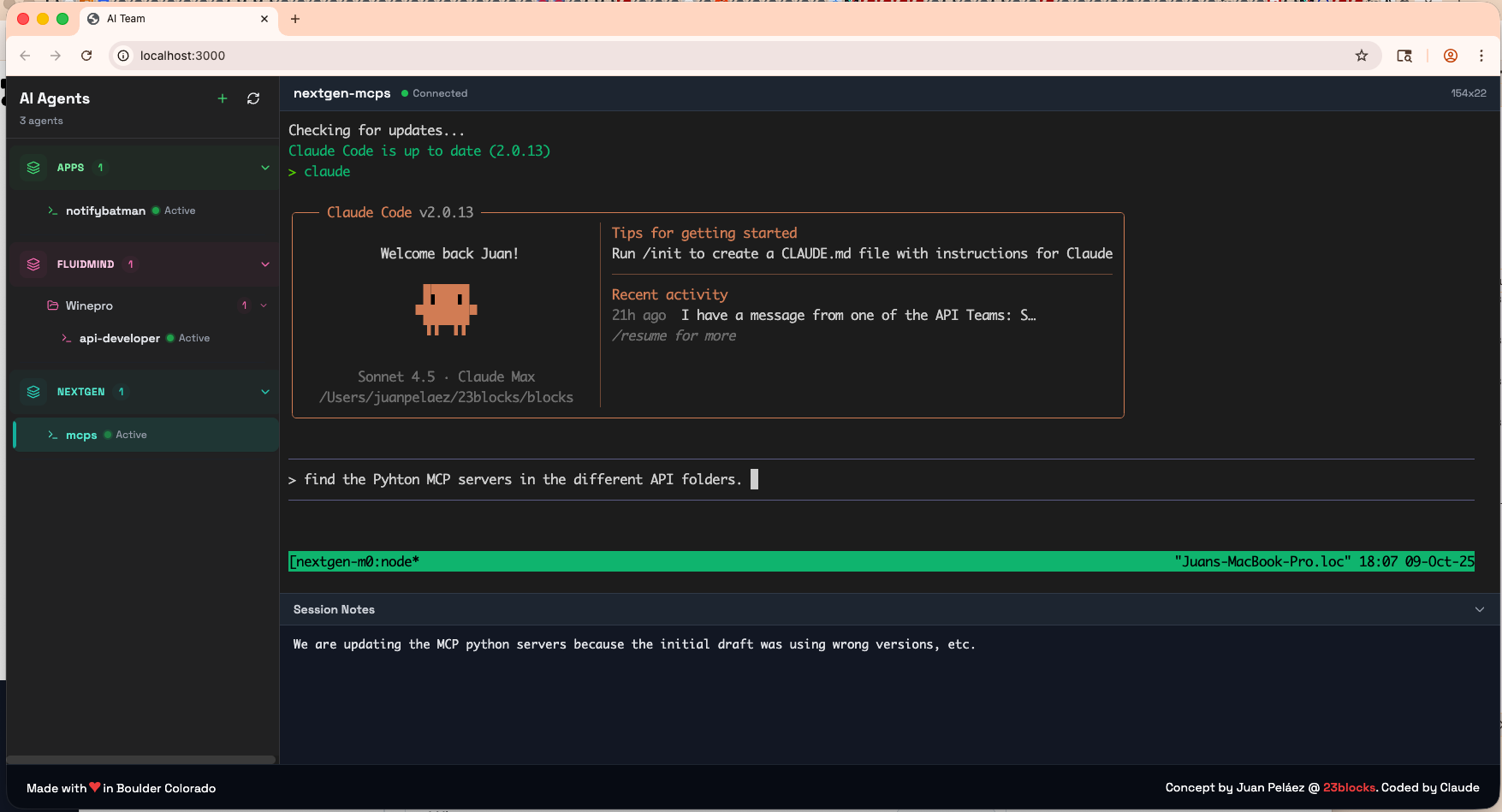
AltamimiYasser@AltamimiYasser
AltamimiYasser/claude-code-bar/tree/main/plugins/bar
프롬프트 위에 상태 표시줄(컨텍스트, 플랜 한도, 현재 턴의 시간과 토큰)을 표시하고 각 최종 답변을 테두리로 감싸는 Claude Code 플러그인
AltamimiYasser/claude-code-bar/tree/main/plugins/bar
프롬프트 위에 상태 표시줄을 추가하고, 각 턴의 실시간 타이머를 보여 주며, 최종 답변을 그 앞의 작업과 구분하는 테두리를 표시하는 Claude Code 플러그인입니다. Claude 데스크톱 앱의 Code 탭과 터미널에서 작동합니다.
프롬프트 위의 표시줄
두 줄로 된 패널입니다. 1행은 용량, 즉 얼마나 찼는지를 보여 줍니다. 2행은 현재 상태로, 턴, 도구, 프롬프트 캐시와 Hand off를 표시합니다. 모든 게이지는 얇은 트랙, 끝으로 갈수록 밝아지는 채움, 현재 위치를 표시하는 구슬(가운데가 흰 점)로 같은 방식으로 그려집니다. 항목에 마우스를 올리면 전체 상세 정보가 다른 행 위에 겹쳐 표시됩니다.
1행: 용량
━━━━●───┊──┊── 216k / 1.0M 22%: 이 채팅의 컨텍스트 창이 얼마나 찼는지 보여 줍니다. 굵은 숫자는 대화의 토큰 수이고, / 400k는 한도입니다(설정했다면 자동 압축 창, 그렇지 않으면 모델 창, 또는 /bar-limit으로 지정한 창). 뒤에는 비율이 옵니다. 트랙의 흐린 눈금은 다음 색상이 시작되는 위치를 표시하며, 아직 앞에 있는 눈금만 그립니다. Context를 클릭하면 /usage를 실행합니다.━━●─┃── 30% 07:20: 플랜의 5시간 창과 주간 한도입니다. 굵은 백분율은 사용한 양이고, 흐린 시간이나 요일은 재설정 시각입니다. 선 위의 세로 표시는 현재로, 창이 얼마나 진행됐는지를 나타냅니다. 구슬이 표시 왼쪽이면 시계보다 느린 속도로 사용 중이라 여유가 있습니다. 오른쪽이면 속도가 앞서서 재설정 전에 한도에 도달할 수 있습니다. 마우스를 올리면 정확한 재설정 날짜와 현재 속도로 어디에 도달할지 확인할 수 있습니다.2행: 현재 상태
out은 Claude가 작성한 토큰 수입니다(+는 아직 스트리밍되는 내용이 있다는 뜻). read는 프롬프트 캐시에서 제공된 토큰 수이고, write는 캐시에 새로 기록한 토큰 수입니다. 턴에 마우스를 올리면 캐시 밖의 입력 in과 도구 호출을 포함한 네 항목을 모두 볼 수 있습니다./bar-handoff): /mattpocock-skills:handoff를 실행해 인계 문서를 작성한 뒤, 같은 폴더에서 해당 문서부터 이어서 작업하는 새 Code 세션을 엽니다. 현재 채팅은 그대로 유지되며 지워지거나 압축되지 않습니다. 이 버튼은 대부분 외곽선으로 표시되고, 캐시가 부족해지는 순간(주황색 또는 빨간색)에 실선으로 바뀝니다. 눌러야 할 시점을 알려 주는 것입니다. 실행 중에는 Writing…, Opening…, Opened ✓ 순서로 표시됩니다(실패하면 Failed가 되고 마우스를 올려 이유를 봅니다). 데스크톱 앱은 새 세션의 폴더를 신뢰할지 묻습니다. 그 세션에서 Bar가 실행 중이면 계속하라는 프롬프트를 자동으로 보내고, 그렇지 않으면 메시지 상자에 대기합니다. mattpocock-skills 플러그인이 필요합니다.색상
| 색상 | 미터 또는 카운트다운에서의 의미 |
| --- | --- |
| 녹색 | 절반 미만 사용 |
| 노란색 | 절반부터(levels.yellow, 50%) |
| 주황색 | 4분의 3부터(levels.orange, 75%) |
| 빨간색 | 한도에 도달했거나 초과(levels.red, 100%); 캐시 만료 |
턴에서 주황색(비트, 타이머, 스파크라인)은 Claude 고유의 색상이며 Claude가 작업 중이라는 뜻일 뿐입니다. 굵은 숫자는 읽을 값이고, 흐린 글자는 레이블이나 단위입니다.
터미널에서는 같은 패널을 문자로 그립니다. ━는 사용됨, ─는 트랙, ┃는 현재 위치, ●는 작업 중, ○는 유휴, │는 항목 사이의 구분을 뜻하며, Hand off는 [ Hand off → ]로 표시됩니다.
앱은 이미 프롬프트 위에 저장소, 브랜치, 커밋되지 않은 변경 사항과 실행 중인 작업을 표시하므로 Bar에서는 생략합니다.
각 턴
프롬프트 하단의 Remote Control
메시지 상자 아래 푸터 오른쪽에 ○ Remote 토글이 있습니다. 클릭하거나 /remote를 실행하면 프로젝트 폴더의 Remote Control이 시작되고, 다시 실행하면 중지됩니다. 표시는 상태를 나타냅니다.
○ Remote: 꺼짐🟡 Remote…: 시작 중🟢 Remote: 연결됨🔴 Remote: 프로세스가 중지됨(Remote sessions에 이유가 표시됨)옆의 Sessions는 Remote Control을 사용한 적이 있는 모든 폴더의 목록을 엽니다. 실행 중인 항목이 먼저 나오고, 각 항목에 폴더와 실행 시간이 표시됩니다(중지된 항목에는 중지 시각과 실행 시간이 표시됨). 실행 중인 각 행에는 Stop, 중지된 행에는 Start와 Remove가 있습니다. Stop all은 실행 중인 항목을 모두 종료합니다. 직접 claude remote-control로 시작한 Remote Control 프로세스도 "started outside Bar"로 표시되며 중지할 수 있습니다.
다른 외插件이 푸터에 추가한 항목(예를 들어 자체 버튼)은 그대로 남아 Sessions 앞에 표시됩니다.
폴더마다 Remote Control은 하나이며 그 폴더의 모든 세션이 공유합니다. 시작한 세션이 끝난 뒤에도 계속 실행되고, 나중에 같은 폴더에서 연 세션에서도 확인하여 끌 수 있습니다. 프로세스 ID와 로그는 ~/.claude/bar/remote/에 보관됩니다.
Claude Code에서:
/plugin marketplace add AltamimiYasser/claude-code-bar
/plugin install bar@claude-code-bar
또는 셸에서:
claude plugin marketplace add AltamimiYasser/claude-code-bar
claude plugin install bar@claude-code-bar
그 후 새 세션을 시작합니다.
요구 사항: Bar는 function hooks로 구성된 mod(플러그인)이며 function hooks는 Early Access 단계입니다. 표시줄이 나타나지 않으면 환경에 CLAUDE_CODE_ENABLE_FUNCTION_HOOKS=1을 설정하거나 ~/.claude/settings.json의 env 블록에 설정하세요.
| 명령 | 기능 |
| --- | --- |
| /bar-limit 300k | 컨텍스트 미터가 가득 차서 빨간색으로 바뀌는 지점을 설정합니다. 300k, 1.5m, 250000을 허용하며 모델 자체 창을 상한으로 합니다. /bar-limit model은 모델의 전체 창을 사용하고, /bar-limit off는 기본값인 자동 압축 창으로 돌아가며, 단독 /bar-limit은 현재 값을 표시합니다. |
| /remote | 푸터 토글과 같은 방식으로 이 폴더의 Remote Control을 켜거나 끕니다. /remote list는 Remote sessions를 열고 /remote stop-all은 실행 중인 항목을 모두 중지합니다. |
| /bar-handoff | Hand off 버튼처럼 인계를 작성하고 새 세션에서 계속합니다. |
| /bar-demo | 샘플 표시줄(플랜 한도 없음, 가벼운 사용, 가득 차는 중, 한도 초과)을 차례로 보여 준 뒤 실시간 표시줄로 돌아갑니다. |
Bar가 표시하는 모든 항목은 ~/.claude/bar/settings.jsonc에서 끌 수 있습니다. Bar는 처음 실행할 때 모든 옵션을 기본값으로 설정하고 설명 주석을 넣은 파일을 작성합니다. 변경 사항은 재시작 없이 몇 초 안에 적용됩니다. 잘못된 값은 기본값으로 돌아가고, 파싱할 수 없는 파일은 마지막으로 유효한 설정을 유지하면서 알림을 표시합니다.
| 옵션 | 기본값 | 제어 내용 |
| --- | --- | --- |
| bar.enabled | true | 프롬프트 위의 전체 표시줄 |
| bar.hover | true | 상세 정보와 밑줄을 포함한 모든 호버 효과 |
| bar.pillBorders | true | 표시줄 패널 주변의 흐린 윤곽선(데스크톱) |
| context.enabled | true | Context 미터 |
| context.limit | "autoCompact" | 미터가 가득 차는 위치. "autoCompact"는 자동 압축 창(Claude Code 설정의 autoCompactWindow, 설정하지 않으면 모델 창), "model"은 모델 자체 창, 또는 토큰 수를 사용합니다. 이전 파일의 null은 "autoCompact"로 읽습니다. |
| context.click | "usage" | "Context"를 클릭했을 때의 동작. "usage"는 /usage를 실행하고 "none"은 아무것도 하지 않습니다. |
| planLimits.fiveHour / weekly | true | 5h 및 Week 미터 |
| planLimits.resetTime | true | 각 백분율 뒤의 재설정 시각 |
| planLimits.hoverDetails | true | 5h 또는 Week에 마우스를 올렸을 때의 정확한 재설정 날짜 |
| planLimits.pace | true | 5h 및 Week 미터의 "현재" 표시와 상세 정보의 속도 추정 |
| turn.enabled | true | 2행의 턴(캐시와 Hand off는 유지) |
| turn.whileWorking / lastTurn | true | 실시간 턴(비트, 시간, 스파크라인)과 턴 사이에 표시되는 마지막 턴 |
| turn.tokens | true | 2행의 토큰 수치 |
| turn.toolCalls / toolCallsPanel | true | 도구 호출 수와 호출되는 패널 |
| answer.frame / footer / footerTokens | true | 답변 테두리, 그 아래 줄과 토큰 수치 |
| spinnerTimer | true | 앱 작업 표시기 옆의 실시간 시간 |
| cache.enabled | true | Cache 카운트다운 |
| cache.handoff | true | 옆의 Hand off 버튼(/bar-handoff는 어느 설정에서도 작동) |
| remote.enabled | true | Remote Control 토글과 /remote |
| remote.autoStart | "newProjects" | Remote Control 자동 시작: "never", "newProjects"(프로젝트의 첫 세션) 또는 "always" |
| remote.notifications | true | 켜기/끄기 알림 |
| remote.sessionsButton | true | 푸터의 Remote sessions 버튼 |
| levels.yellow / orange / red | 0.5 / 0.75 / 1.0 | 색상이 바뀌는 한도의 비율 |
플러그인은 plugins/bar에 있습니다. 다음으로 확인합니다.
claude plugin validate plugins/bar
타입을 확인하려면 plugins/bar에서 Claude Code를 열고 /plugin-types를 실행합니다(API 선언을 .claude/types에 기록합니다). 그런 다음 다음을 실행합니다.
npx -p typescript tsc -p plugins/bar
테스트를 실행합니다(플러그인 테스트 키트는 function hooks를 켜야 합니다).
CLAUDE_CODE_ENABLE_FUNCTION_HOOKS=1 claude plugin test plugins/bar
설치된 플러그인 대신 작업 사본을 불러오려면:
claude --plugin-dir plugins/bar
먼저 작성자의 README에서 marketplace와 플러그인 이름을 확인하세요. 저장소 구조에 따라 명령어가 달라질 수 있습니다.
claude plugin marketplace add AltamimiYasser/claude-code-bar
claude plugin install bar
A Claude Code mod that adds a status bar above the prompt, a live timer on every turn, and a frame that sets each final answer apart from the work before it. It works in the Claude desktop app's Code tab and in the terminal.
The bar, above the prompt
One panel with two rows. Row 1 is capacity: how full things are. Row 2 is right now: the turn, its tools, the prompt cache and Hand off. Every gauge is the same drawing: a thin track, a fill that brightens toward its end, and a bead (a dot with a white centre) marking where you are. Hover any item and its full detail appears laid over the other row.
Row 1: capacity
━━━━●───┊──┊── 216k / 1.0M 22%: how full this chat's context window is. The bold number is the tokens in the conversation, / 400k is the limit (your auto-compact window when you've set one, else the model's window, or your own from /bar-limit), then the share. The faint ticks on the track mark where the next colours start; only the ones still ahead are drawn. Click Context to run /usage.━━●─┃── 30% 07:20: your plan's 5-hour window and weekly limit. The bold percentage is how much you've used; the dim time or day is when it resets. The upright mark on the line is now: how much of the window has passed. Bead left of the mark: you're using it slower than the clock, fine. Bead right of the mark: you're ahead of pace and may run out before it resets. Hover for the exact reset date and where you'll land at this pace.Row 2: right now
out is the tokens Claude wrote (a + means more are still streaming in), read the tokens served from the prompt cache, write the tokens newly written to it. Hover the turn for all four, with in (input outside the cache) and the tool calls./bar-handoff): runs /mattpocock-skills:handoff to write a handoff document, then opens a new Code session in the same folder that continues from it. The current chat stays exactly as it is: it is never cleared or compacted. The button is outlined most of the time and turns solid once the cache is running out (orange or red), the moment it's worth pressing. While it works it reads Writing…, Opening…, then Opened ✓ (or Failed, with the reason on hover). The desktop app asks you to trust the folder for the new session. When that session runs Bar, it sends the continue prompt by itself; otherwise the prompt is waiting in its message box. Requires the mattpocock-skills plugin.The colours
| Colour | On a meter or a countdown |
| --- | --- |
| Green | under half used |
| Yellow | from half (levels.yellow, 50%) |
| Orange | from three quarters (levels.orange, 75%) |
| Red | at or past the limit (levels.red, 100%); the cache has expired |
Orange in the turn (the beat, the timer, the sparkline) is Claude's own colour: it only means Claude is working. A bold number is the value to read; dim text is a label or a unit.
In the terminal the same panel is drawn in characters: ━ used, ─ the track, ┃ the now mark, ● working, ○ idle, │ between items, and Hand off as [ Hand off → ].
The app already shows the repo, branch, uncommitted changes and running tasks above the prompt, so Bar leaves those out.
Every turn
Remote Control, in the prompt footer
A ○ Remote toggle sits at the right of the footer under the message box. Click it, or run /remote, to start Remote Control for the project folder, and again to stop it. Its mark shows the state:
○ Remote: off🟡 Remote…: starting🟢 Remote: connected🔴 Remote: the process stopped (the reason is in Remote sessions)Beside it, Sessions opens a list of every folder that has had a Remote Control, running ones first, each with its folder and how long it has run (a stopped one shows when it stopped and how long it ran). Each row offers Stop while running, and Start and Remove once stopped. Stop all ends every running one. Remote Control processes you started yourself with claude remote-control show up too, marked "started outside Bar", and can be stopped.
Anything another mod adds to the footer (a button of its own, say) stays there, before Sessions.
There's one Remote Control per folder, shared by every session in it. It keeps running after the session that started it ends, and any session opened in that folder later shows it and can turn it off. Its process ID and log are kept in ~/.claude/bar/remote/.
In Claude Code:
/plugin marketplace add AltamimiYasser/claude-code-bar
/plugin install bar@claude-code-bar
Or from a shell:
claude plugin marketplace add AltamimiYasser/claude-code-bar
claude plugin install bar@claude-code-bar
Start a new session afterwards.
Requirement: Bar is a mod, a plugin made of function hooks, and function hooks are in early access. If the bar doesn't appear, set CLAUDE_CODE_ENABLE_FUNCTION_HOOKS=1 in your environment, or in the env block of ~/.claude/settings.json.
| Command | What it does |
| --- | --- |
| /bar-limit 300k | Sets where the context meter is full and turns red. It accepts 300k, 1.5m or 250000, and is capped at the model's own window. /bar-limit model uses the model's whole window; /bar-limit off goes back to the default, your auto-compact window; /bar-limit on its own shows the current value. |
| /remote | Turns Remote Control on or off for this folder, like the footer toggle. /remote list opens Remote sessions; /remote stop-all stops every running one. |
| /bar-handoff | Writes a handoff and continues in a new session, like the Hand off button. |
| /bar-demo | Steps through sample bars (no plan limits, light use, getting full, past the limit), then back to your live bar. |
Everything Bar shows can be turned off, in ~/.claude/bar/settings.jsonc. Bar writes the file the first time it runs, with every option set to its default and a comment explaining it. Changes apply within a few seconds, with no restart. A wrong value falls back to its default, and a file that doesn't parse keeps the last good settings and shows a notice.
| Option | Default | What it controls |
| --- | --- | --- |
| bar.enabled | true | The whole bar above the prompt |
| bar.hover | true | Every hover effect: the details, the underlines |
| bar.pillBorders | true | The faint outline around the bar's panel (desktop) |
| context.enabled | true | The Context meter |
| context.limit | "autoCompact" | Where the meter is full: "autoCompact" for your auto-compact window (autoCompactWindow in Claude Code's settings; the model's window when none is set), "model" for the model's own window, or a token count. An older file's null reads as "autoCompact" |
| context.click | "usage" | Clicking "Context": "usage" runs /usage, "none" does nothing |
| planLimits.fiveHour / weekly | true | The 5h and Week meters |
| planLimits.resetTime | true | The reset time after each percentage |
| planLimits.hoverDetails | true | The exact reset date while hovering 5h or Week |
| planLimits.pace | true | The "now" mark on the 5h and Week meters, and the pace estimate in their details |
| turn.enabled | true | The turn on row 2 (the cache and Hand off stay) |
| turn.whileWorking / lastTurn | true | The live turn (beat, time, sparkline), and the last turn between turns |
| turn.tokens | true | The token figures on row 2 |
| turn.toolCalls / toolCallsPanel | true | The tool-call count, and the panel it opens |
| answer.frame / footer / footerTokens | true | The answer frame, the line under it, and its token figures |
| spinnerTimer | true | The live time beside the app's working indicator |
| cache.enabled | true | The Cache countdown |
| cache.handoff | true | The Hand off button beside it (/bar-handoff works either way) |
| remote.enabled | true | The Remote Control toggle and /remote |
| remote.autoStart | "newProjects" | Start Remote Control by itself: "never", "newProjects" (a project's first session) or "always" |
| remote.notifications | true | The on/off notices |
| remote.sessionsButton | true | The Remote sessions button in the footer |
| levels.yellow / orange / red | 0.5 / 0.75 / 1.0 | The share of a limit where colors change |
The plugin lives in plugins/bar. Check it with:
claude plugin validate plugins/bar
For type checking, open Claude Code in plugins/bar, run /plugin-types (it writes the API declarations to .claude/types), then run:
npx -p typescript tsc -p plugins/bar
Run the tests (the plugin test kit needs function hooks switched on):
CLAUDE_CODE_ENABLE_FUNCTION_HOOKS=1 claude plugin test plugins/bar
To load your working copy instead of the installed one:
claude --plugin-dir plugins/bar

Ruflo 메모리 기반용 플러그인입니다. AgentDB 컨트롤러 브리지(15개 agentdb_* MCP 도구), RuVector ONNX 임베딩(RaBitQ 32x 양자화를 포함한 10개 embeddings_* 도구), WASM HNSW 패턴 라우터(3개 ruvllm_hnsw_* 도구)를 제공합니다. mod(ADR-445)로서 프롬프트에 안전한 선택적 회수를 넣고, 비밀이 메모리에 들어가지 않도록 쓰기 가드를 두며, /agentdb와 콘솔이 보여 주는 상태 파일을 제공합니다.

pbir CLI를 따르는 리포트 패널에서 Claude가 읽고 변경하는 내용을 보여 주면서 대화형 Power BI 리포트를 만들고, 형식을 지정하고, 최적화하고, 검토합니다.

프롬프트 위, 상태 줄과 toast에 읽지 않은 AMP 메시지를 표시하고 유휴 Claude Code 세션을 깨워 읽게 합니다. Claude Code 2.1.287 이상이 필요합니다.